What development environment is required to develop applications for Ricoh Smart Operation Panel (SOP)?
Android Development
We recommend using the following Android development environment:
We recommend using the following Android development environment:
After declaring a dependency on a AAA library and compiling an application, it is possible that the application will crash after issuing an error. e.g., you may see a stacktrace similar to this one:
While you are free to use all or some of the code we provide as sample applications [see: Smart Operation Panel > Sample Applications > Development Guide (Sample application)] please note that they are provided without any guarantee of fitness or suitablility.
If your application is not receiving events from a USB HID card reader there are a few device configuration items to check. The most important detail to make note of is that on all models the obvious USB type-A port on the left-hand side should not be used for HID devices like keyboards, hubs, or card readers.
Got G3 models, HID devices like card readers should be plugged into the top type-A port, which is hidden under a plastic façade on the top of the panel. The plastic façade can be snapped off easily.
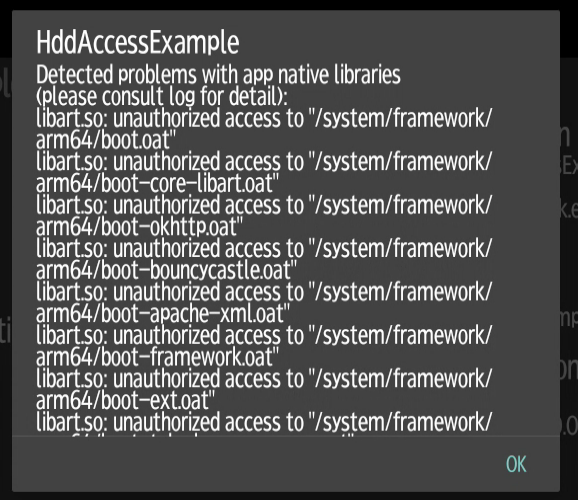
This warning will be raised for any Smart Operation Panel (SOP) application that has just been installed where the APK in that package was the result of a build variant where the debuggable configuration was set to true.
Under some circumstances the recommended operating environment for the SmartSDK Emulator may conflict with some Windows PC hardware.
Specifically, if the emulator is deployed to a PC that supports "High DPI Scaling" the Emulator UI components and text will render extremely small and may be completely unusable as a result.
The development kit documentation discusses some of the error codes that can be raised when installing SOP application to devices via WIM. See: Smart Operation Panel > Start Guide > Installation > 05. Installation/Uninstallation of the Product Version Application
While these error codes are correct (and should always be shared with RiDP in situations where SOP installations are failing) they may not be as detailed as we like. Here are some hints that might explain a specific error code you are receiving.
RiDP provides a convenience signing servlet (nicknamed "SignFish") which provides partners with a self-service tool for demo or beta signing their SmartSDK applications. This servlet is provided to create signed packages for deployment to any device in a time-limited manner, suitable for customer beta tests or Quality Assurance purposes.
Under some circumstances SignFish may reject the signing request with a message similar to this:
Invalid Message : Invalid Vendor ID
If you run into a situation where your app is not honouring the app-extensions settings in your DALP file, check to make sure that the DALP is a plaintext file.
Ricoh device configurator
The following link provides developers with a visual reference to Ricoh devices. You may use this link for ordering or to confirm device capabilities in a visual way (panel size, color, B&W, etc.) returned by API calls.
For older devices, expand the “Archived” section.